> For the complete documentation index, see [llms.txt](https://help.immodio.app/llms.txt). Markdown versions of documentation pages are available by appending `.md` to page URLs; this page is available as [Markdown](https://help.immodio.app/en-start/guides-group/viewings.md).
# Viewings
### Visits
#### General
The **Viewings** tool combines two central functions in one process:
1. **Appointments (Inspection Management)**\
You set your suitable time slots for a viewing once and interested parties apply via link to free time slots.
2. **Applications (applicant management)**\
After the viewing, you can request a digital self-disclosure as well as proof of salary and creditworthiness from the applicants with one click. You can compare all applications clearly and centrally in one place.
***
#### Procedure: Coordinate viewing appointments and applicants
{% stepper %}
{% step %}
**Create a viewing**
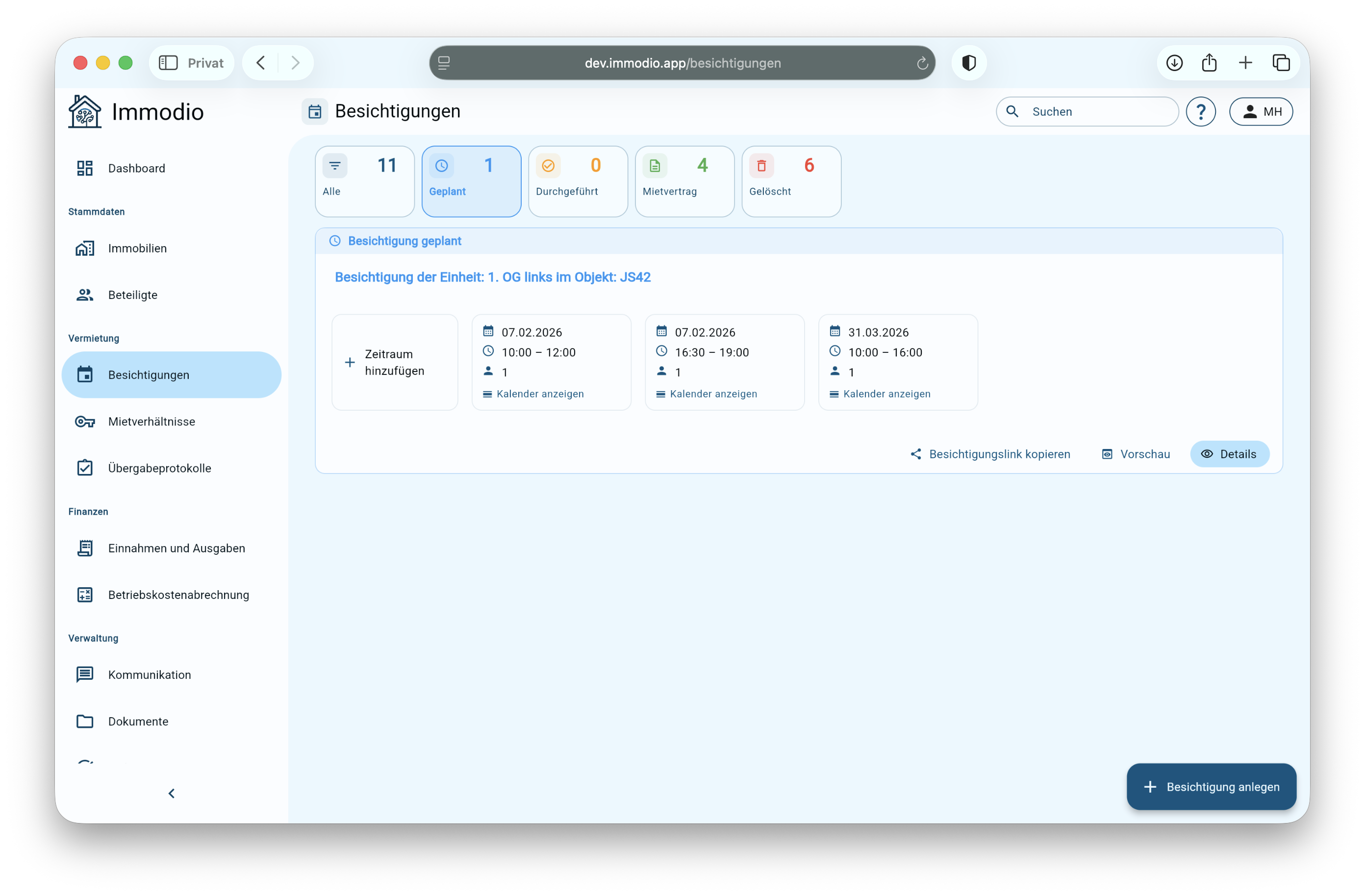
By clicking on **"+ Create viewing"** you can create a **new viewing** and set suitable **time slots**. Additional time slots can also be added or adjusted **subsequently**. Further information can be found here:
Viewing-Mooring
{% endstep %}
{% step %}
**Share viewing link**
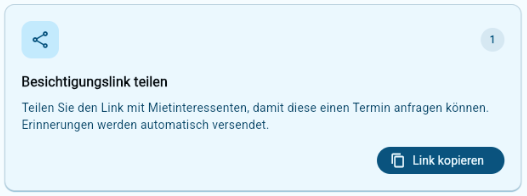
Each viewing has an individual viewing link through which interested parties can apply for a free time slot.
{% hint style="info" %}
You decide for yourself whether you want to insert the viewing link directly into your real estate advertisement in order to receive as many applications as possible, or whether you select the applicants in advance and pass on the link via direct message in the real estate portal only to promising interested parties.
{% endhint %}
Via this viewing link, interested parties can independently request a free time slot and provide initial data relevant to the decision. By clicking on the link, applicants log in to the Immodio tenant portal with their e-mail address and password.
{% endstep %}
{% step %}
**Invite you to visit**
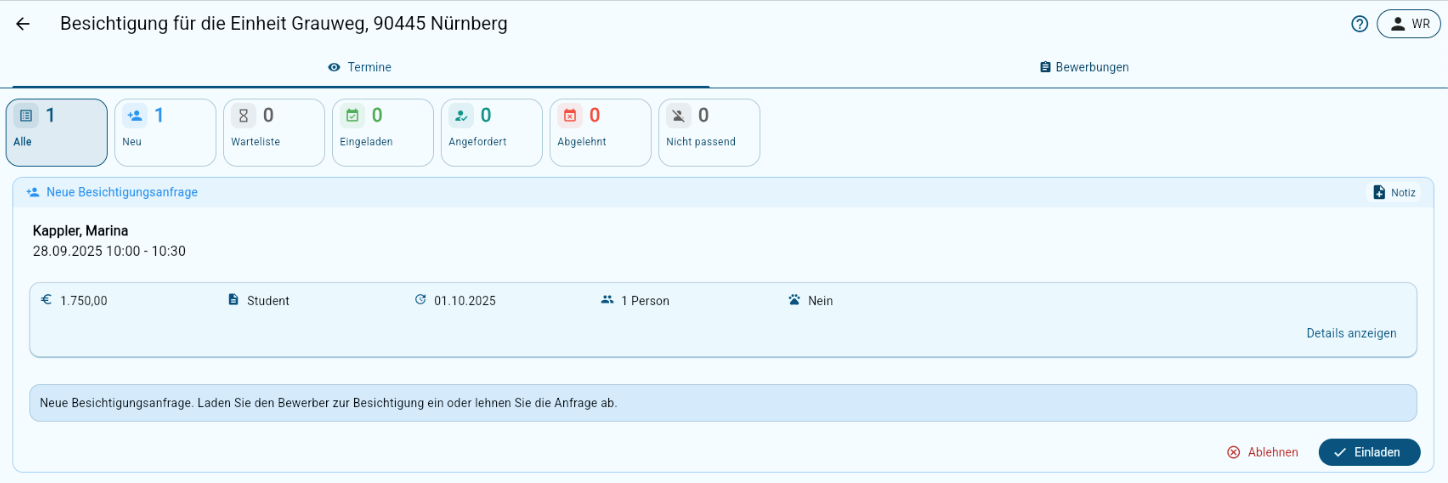
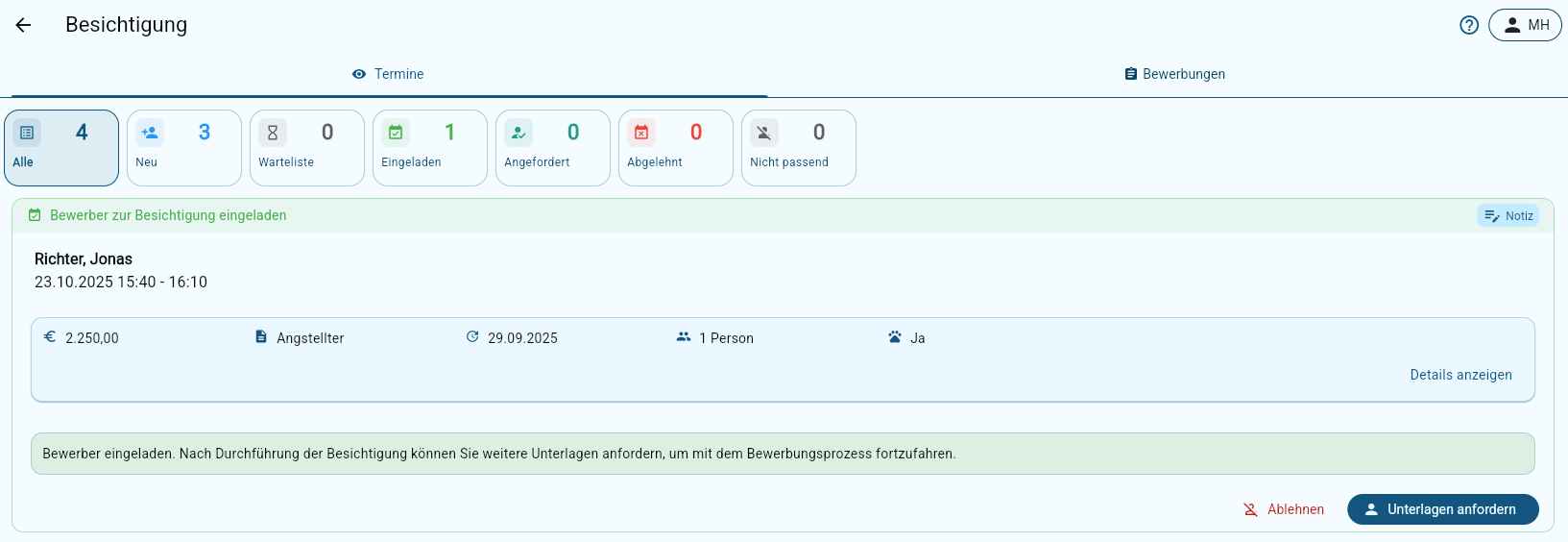
By clicking on a **viewing** you open the detailed view with the tabs **"Dates"** and **"Applications"**. All incoming **viewing requests** are displayed centrally under **"Dates"**. From here, you can **invite** interested parties to view them or **decline** their request – simply with one click and the interested party will be automatically informed by email from Immodio. Further information can be found here:
Dates
{% endstep %}
{% step %}
**Conduct a viewing**
* All **interested parties** will **automatically receive an e-mail reminder** before the viewing appointment.
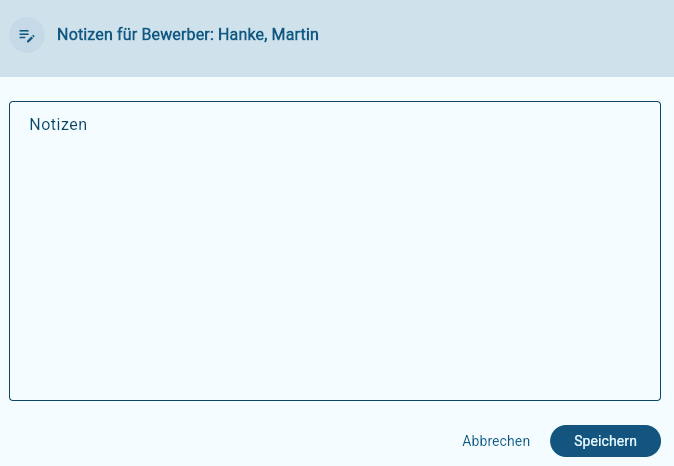
* During the viewing, you have the opportunity to store **individual notes** for each interested party in **Immodio** - directly and clearly in the viewing view.
{% endstep %}
{% step %}
**Request application documents**
* For data protection reasons (GDPR), application documents can only be requested **after** the viewing appointment.
* **Click on "Request documents"**. Applicants will then be given the opportunity to securely submit a digital tenant self-disclosure, proof of identity and creditworthiness as well as salary statements and other documents via Immodio.
* You can easily remove non-relevant applicants from the application process via "Rejections". Immodio will then automatically send them a rejection by e-mail.
{% endstep %}
{% step %}
**Applications**
* Once an **applicant has completed and submitted their application**, you will be automatically **notified**. The complete application, including all **documents and proofs**, can be found in the **"Applications"**" tab.
* Applicants can also add **other competitors** to their application, e.g. in the case of couples or shared flats.
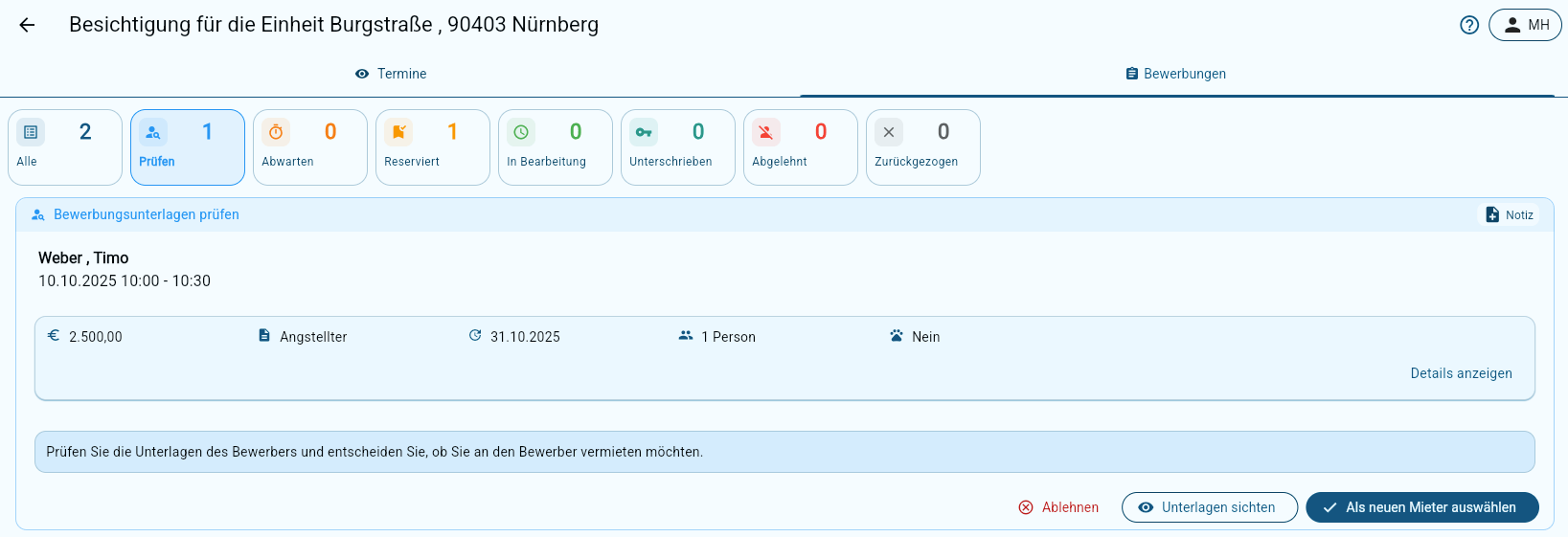
* In the tab **"Applications"** you can then **compare all applications clearly** and select or reject the appropriate **tenant**.
* Further information on applications can be found here:\
Applications
{% endstep %}
{% step %}
**Select as new tenant**
* By clicking on **"Select as new tenant"** you can reserve the **unit for the preferred applicant**.
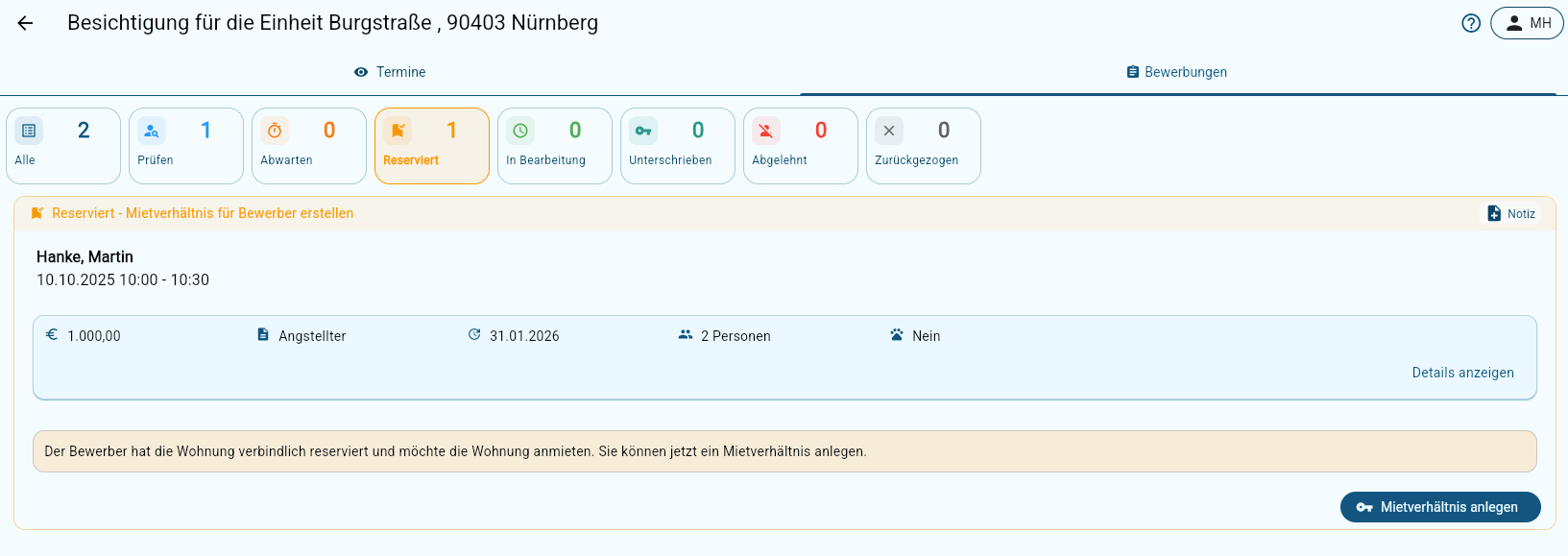
* The selected applicant is automatically **notified** and can then also **bindingly reserve** the apartment. You can also withdraw the request at any time and then select another applicant as a new tenant.
* You can **reject** an application via \*\*"Reject" – the applicant will also be **automatically informed** by Immodio.
{% endstep %}
{% step %}
**Create a tenancy**
* As soon as the applicant has reserved the apartment, you can start the **creation of the tenancy** in Immodio by clicking on **"Create tenancy"**.
* All **data and documents** provided by the applicant will be automatically transferred.
* You will then be automatically redirected to the **Immodio Rental Contract Wizard**, which will guide you step by step through the contract creation process.
**More information can be found here:**
\#mietverhaltnis-Create
{% endstep %}
{% endstepper %}
#### Delete viewings
The deletion of an established inspection in Immodio is subject to certain restrictions due to data protection requirements and requirements from the General Equal Treatment Act. You can find out more about it here: