> For the complete documentation index, see [llms.txt](https://help.immodio.app/llms.txt). Markdown versions of documentation pages are available by appending `.md` to page URLs; this page is available as [Markdown](https://help.immodio.app/en-start/guides/besichtigungen.md).
# Viewings
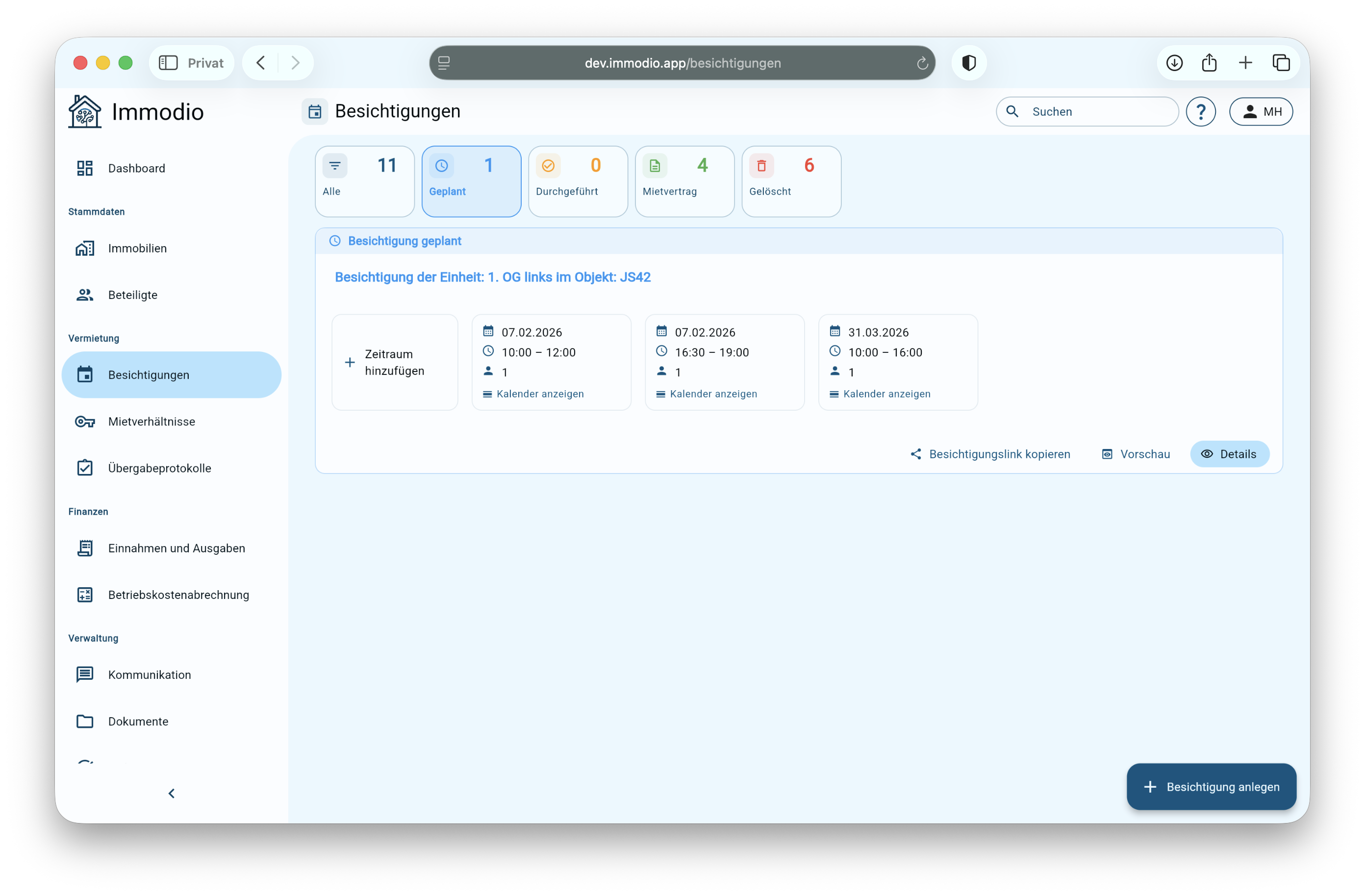
The "Viewings" menu item brings together all the functions for the digital letting process, letting you coordinate viewing appointments and manage applicants clearly.
## Viewings
### General
The **Viewings** tool combines two central functions in one process:
1. **Appointments (viewing management)**\
You set your suitable time slots for a viewing once, and prospective tenants apply for free time slots by link.
2. **Applications (applicant management)**\
After the viewing you can request a digital self-disclosure form as well as proof of income and creditworthiness from the applicants with one click. You compare all applications clearly and centrally in one place.
***
### Process: coordinating viewing appointments and applicants
{% stepper %}
{% step %}
#### Creating a viewing
Clicking **"+ Create viewing"** lets you **create a new viewing** and set suitable **time slots**. Additional time slots can also be added or adjusted **afterwards**. You can find more information about this here:
besichtigung-anlegen
{% endstep %}
{% step %}
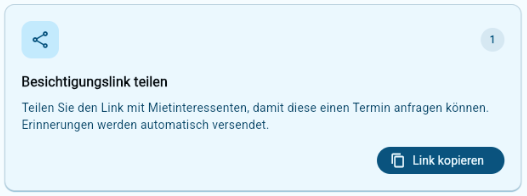
#### Sharing the viewing link
Every viewing has an individual viewing link that prospective tenants can use to apply for a free time slot.
{% hint style="info" %}
You decide yourself whether to insert the viewing link directly into your property listing in order to receive as many applications as possible, or to preselect applicants in advance and pass the link on by direct message in the property portal only to promising prospective tenants.
{% endhint %}
Using this viewing link, prospective tenants request a free time slot themselves and provide initial details relevant to your decision. Clicking the link takes applicants to the Immodio tenant portal, where they log in with an email address and password.
{% endstep %}
{% step %}
#### Inviting people to the viewing
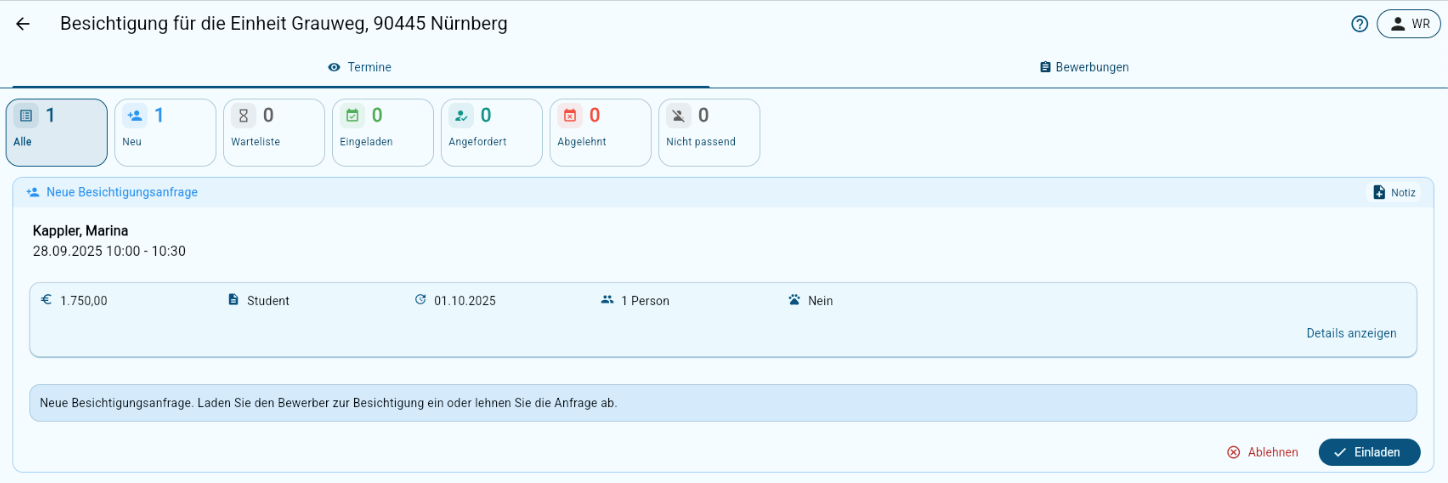
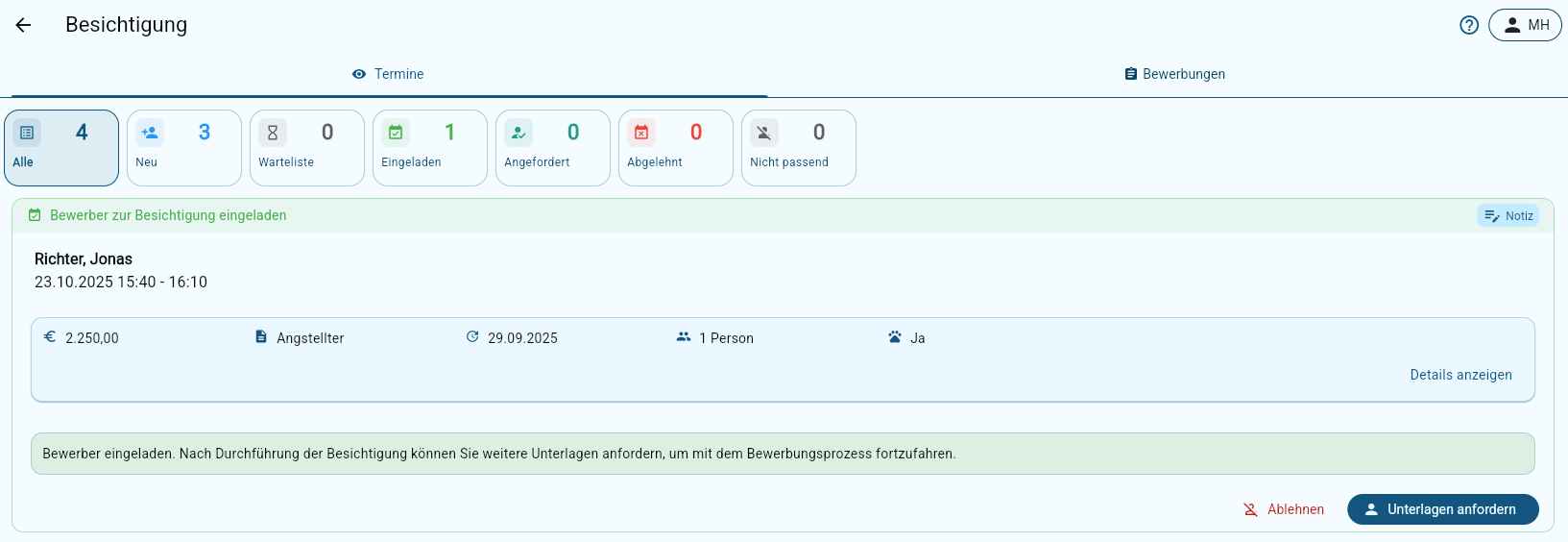
Clicking a **viewing** opens the detail view with the **"Appointments"** and **"Applications"** tabs. All incoming **viewing requests** are shown centrally under **"Appointments"**. From here you can **invite** prospective tenants **to the viewing** or **reject** their request, simply with one click, and Immodio informs the prospective tenant automatically by email. You can find more information here:
termine
{% endstep %}
{% step %}
#### Carrying out the viewing
* All **prospective tenants** automatically receive **an email reminder** before the viewing appointment.
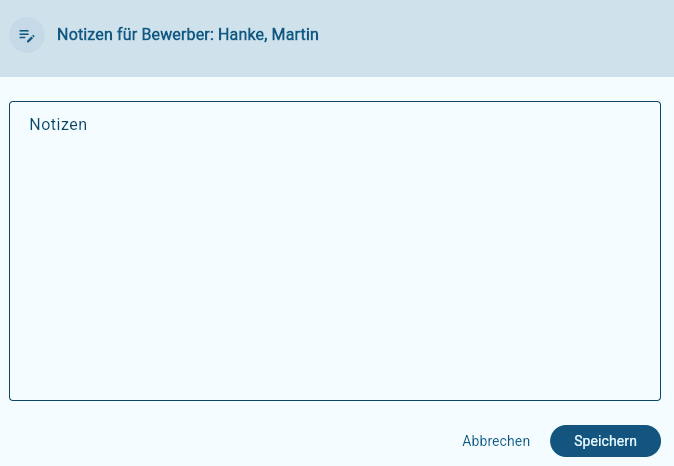
* During the viewing you can store **individual notes** for each prospective tenant in **Immodio**, directly and clearly in the viewing view.
{% endstep %}
{% step %}
#### Requesting application documents
* For data protection reasons (GDPR), application documents can only be requested **after** the viewing appointment.
* **To do so, click "Request documents"**. The applicants then have the opportunity to send you a digital tenant self-disclosure form, proof of identity and creditworthiness, proof of income and other documents securely through Immodio.
* You can easily remove applicants who are not relevant from the application process using "Reject". Immodio then automatically sends them a rejection by email.
{% endstep %}
{% step %}
#### Applications
* As soon as an **applicant has completed and submitted their application**, you are **notified** automatically. You find the complete application including all **documents and evidence** in the **"Applications"** tab.
* Applicants can also add **further co-applicants** to their application, for example for couples or house shares.
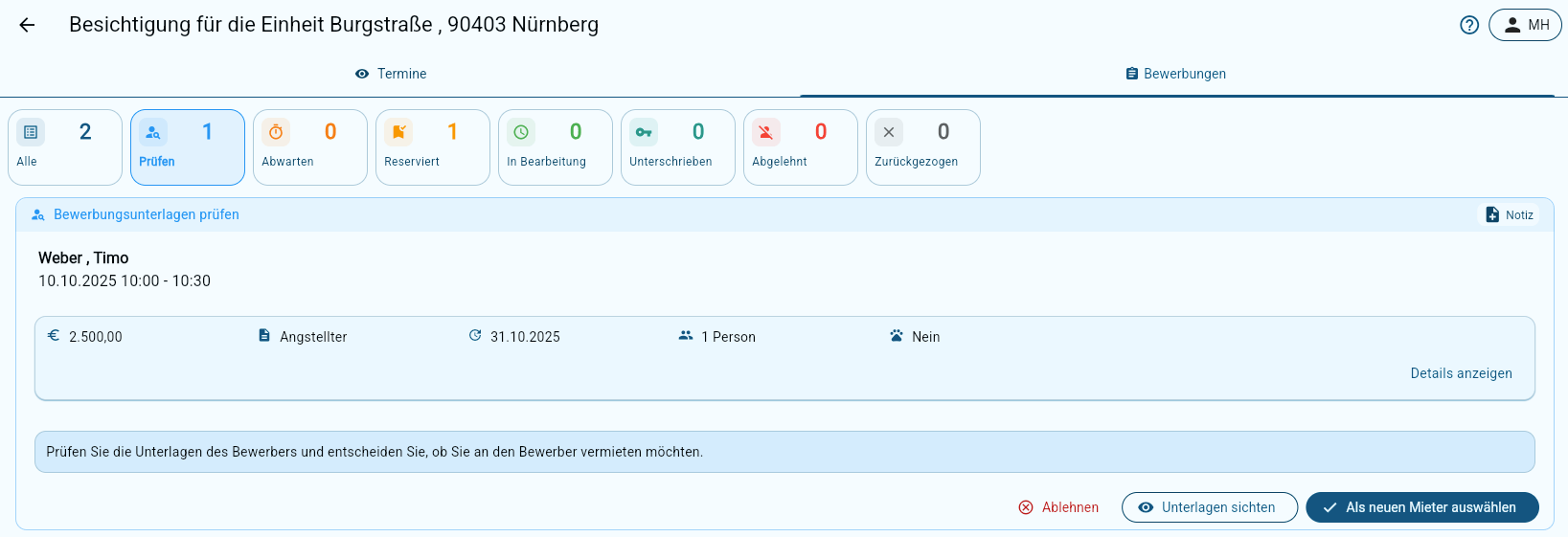
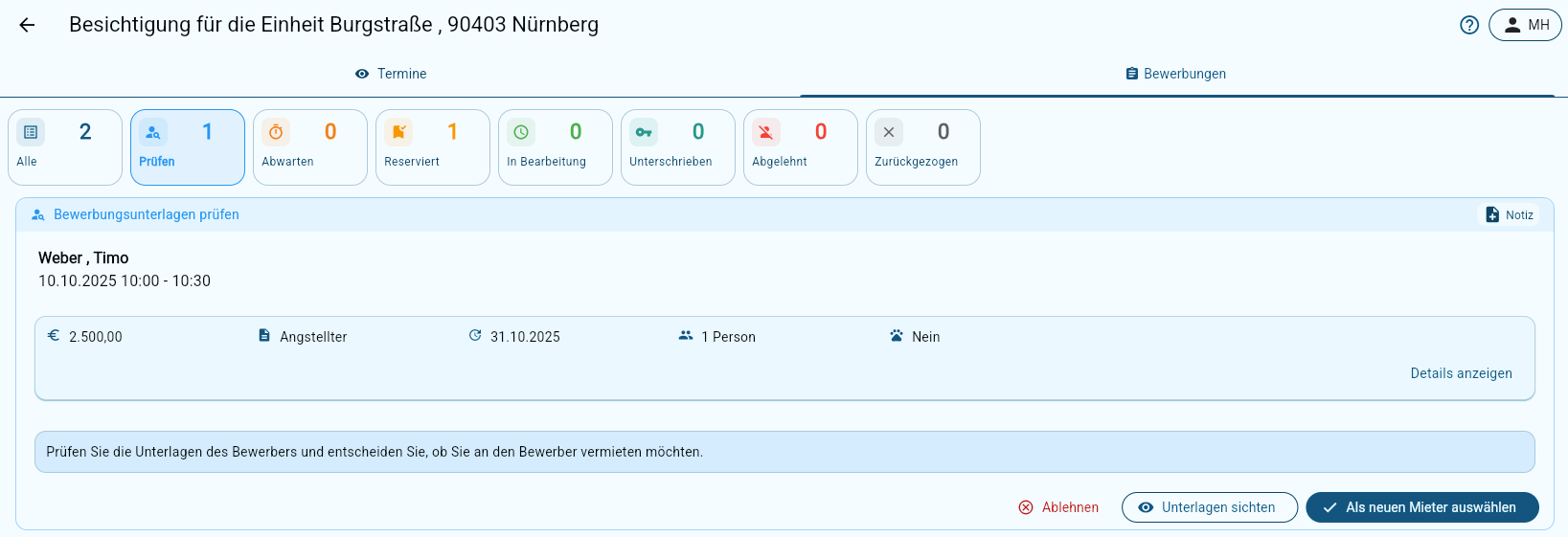
* In the **"Applications"** tab you can then **compare all applications clearly** and **select or reject** the right **tenant**.
* You can find more information about applications here:\
bewerbungen
{% endstep %}
{% step %}
#### Selecting a new tenant
* Clicking **"Select as new tenant"** lets you **reserve the unit for your preferred applicant**.
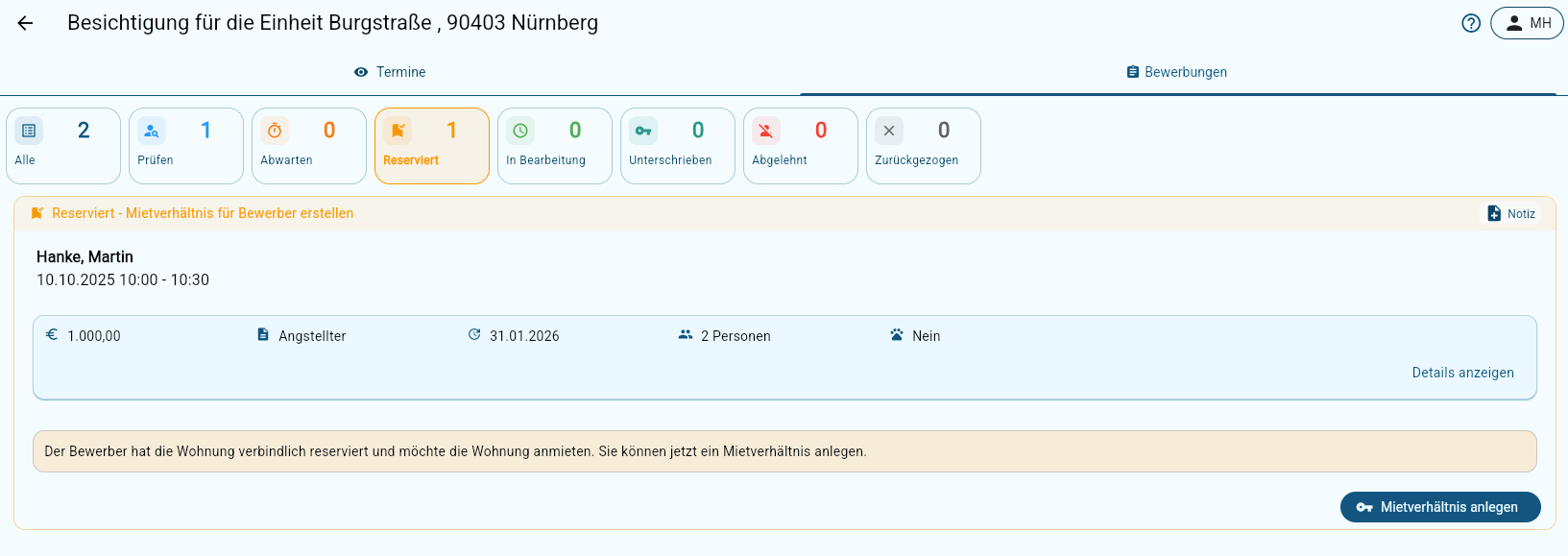
* The selected applicant is **notified** automatically and can then also **reserve the apartment bindingly**. You can also withdraw the request at any time and then select a different applicant as the new tenant.
* **"Reject"** lets you **reject** an application, and the applicant is likewise **informed automatically by Immodio**.
{% endstep %}
{% step %}
#### Creating a tenancy
* As soon as the applicant has reserved the apartment bindingly, clicking **"Create tenancy"** lets you start **creating the tenancy** in Immodio.
* All the **data and documents** provided by the applicant are adopted automatically.
* You are then forwarded automatically to the **Immodio rental agreement assistant**, which guides you step by step through creating the contract.
**You can find more information here:**
\#mietverhaltnis-anlegen
{% endstep %}
{% endstepper %}
### Deleting viewings
Deleting a viewing you have created in Immodio is subject to certain restrictions because of data protection requirements and the requirements of the German General Equal Treatment Act. You can find out more about this [**here**](/en-start/guides/besichtigungen/loschen-von-besichtigungen.md).