> For the complete documentation index, see [llms.txt](https://help.immodio.app/llms.txt). Markdown versions of documentation pages are available by appending `.md` to page URLs; this page is available as [Markdown](https://help.immodio.app/en-start/knowledge-group/tenant-portal/invitation-to-the-tenant-portal.md).
# Invitation to the tenant portal
### Invitation to the tenant portal
* You can invite a tenant to the tenant portal at any time as soon as they have been created as a participant in Immodio. This is also possible if there is no tenancy yet.
* As soon as a tenancy is created for this participant at a later date, it is automatically transferred to the tenant portal.
{% hint style="info" %}
If there are several tenants in a tenancy, it is generally sufficient if only one of the tenants has access to the tenant portal. Documents such as the rental agreement can be signed centrally by all tenants via a common entrance. However, it is important to ensure that all information provided via the tenant portal also reaches all tenants of the tenancy.
{% endhint %}
{% hint style="success" %}
If your tenant already has an existing Immodio account, they can simply log in with their existing Immodio account via the invitation link. The new tenancy is then automatically transferred to the existing account.
{% endhint %}
#### Invitation via participants
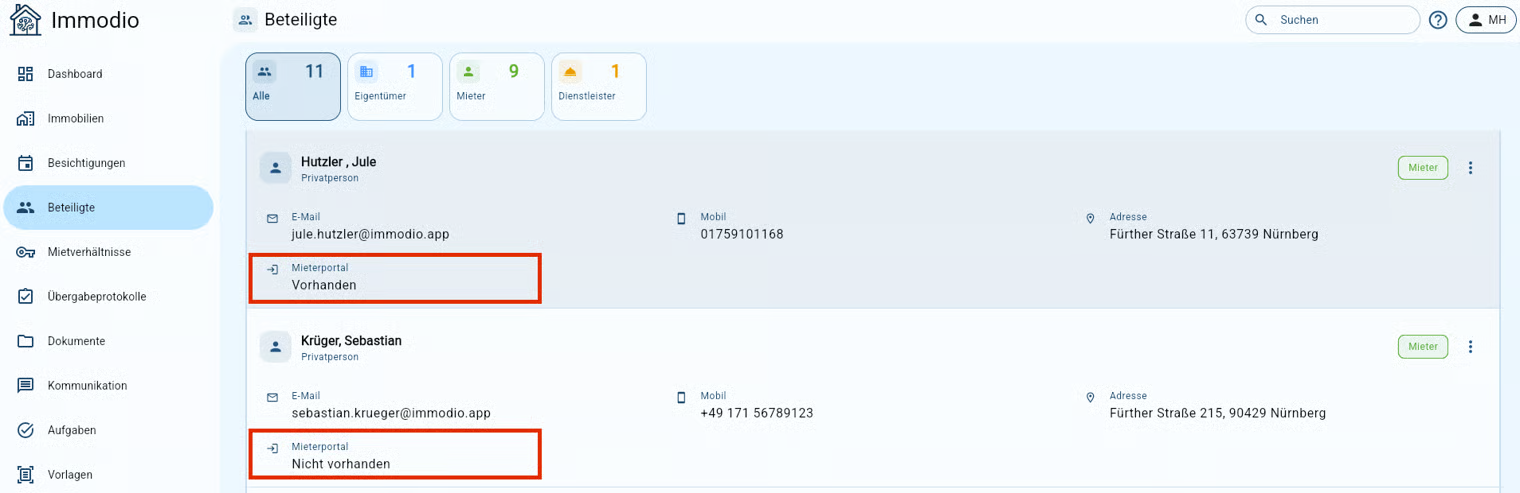
To invite a tenant to the tenant portal, first open the menu item **"Participants"** and search for the corresponding tenant. There you can see whether the tenant already has access to the tenant portal. If there is no access yet, you can invite the tenant as follows:
{% stepper %}
{% step %}
**Generate invitation link**
Click on **"Actions"** for the respective tenant and then on **"Invite tenants to the tenant portal"**.
{% endstep %}
{% step %}
**Share invitation link**
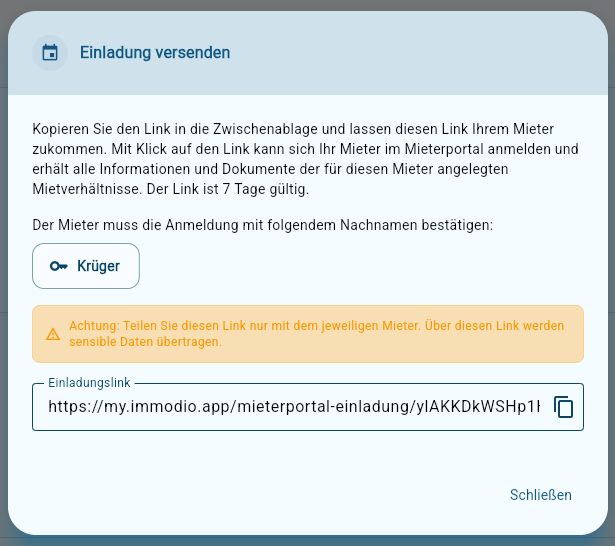
You will receive an individual invitation link that you can forward to your tenant. Click the copy icon to the right of the link to copy the link and then forward it to your tenant.
* Via the link, the tenant can register in the tenant portal and gain access to all information and documents of the tenancies created for him.
* For verification, the tenant must enter his **last name** as a password when registering, in the case of companies the **company name**. Pay attention to the correct upper and lower case letters as well as spaces. It is important that the name is spelled exactly as you as the landlord have created it under "Participants".
* The link is valid for 7 days. If the invitation has not been accepted by then, a new link must be generated.
{% hint style="danger" %}
Share this individual invitation link only with the respective tenant, as sensitive data is transmitted via this link.
{% endhint %}
{% endstep %}
{% step %}
**Registration by tenants**
Now your tenant can register in the tenant portal within 7 days with his e-mail address and a password. In the future, he will receive notifications from the tenant portal to this e-mail address.
{% hint style="warning" %}
The tenant must verify his e-mail address on the "Dashboard" in the tenant portal in order to be notified by Immodio via e-mail.
{% endhint %}
{% endstep %}
{% endstepper %}
#### Invitation when creating a tenancy
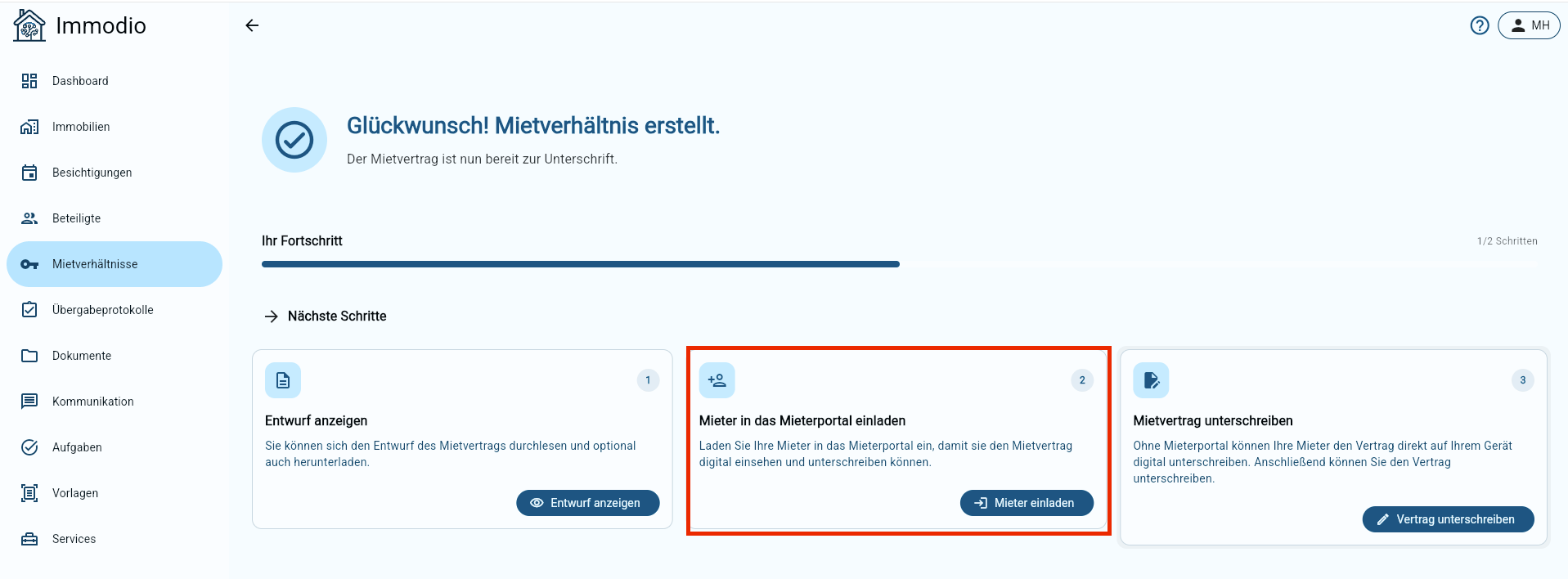
If you have created a new tenancy without using Immodio Viewing Management, you can invite the tenant directly via the Success Page. To do this, click on the button **"Invite tenant"** to invite the tenant to the tenant portal.
#### View of the tenant when invited to the tenant portal
{% stepper %}
{% step %}
**Open invitation link**
After you have sent your tenant the invitation link for the Immodio tenant portal, the tenant can open the invitation via this link. For verification, he must then enter his last name and confirm.
{% hint style="info" %}
The last name must be entered exactly as it is stored with the landlord under **Participants**. Please pay attention to the correct upper and lower case letters, hyphens, spaces and special characters.
In the case of companies, the legal form, if it is entered under **Participants**, must also be stated in full and in the same spelling (e.g. GmbH, UG or e.K.)
{% endhint %}
{% endstep %}
{% step %}
**Registration & Login**
After the tenant has successfully verified himself with his last name, the next step is to ask him to register with his e-mail address and a password in the Immodio tenant portal.
{% hint style="info" %}
If the tenant has already been invited to the Immodio tenant portal by another landlord in the past and therefore already has existing access, no new registration is required. In this case, the tenant can simply log in with his already known access data and accept the invitation.
{% endhint %}
As part of the registration, the tenant must also confirm that he has read and agrees to the **Privacy Policy of the Landlord**.
The privacy policy can be viewed at the following link:\
{% hint style="warning" %}
If you as a landlord want to use your own privacy policy or additionally regulate certain data protection aspects in a separate agreement with the tenant, please contact the tenant directly and provide him with the relevant information or documents separately.
{% endhint %}
{% endstep %}
{% step %}
**Synchronization of data**
Now the relevant data for the tenant is synchronized and made available in the tenant portal. This includes, in particular, the tenancies assigned to the tenant and, if applicable, existing utility bills.
As soon as the synchronization is complete (usually a few seconds), the tenant can view this information in his personal access to the immodio tenant portal. This means that the documents and data released for him are available to him centrally and digitally.
{% endstep %}
{% endstepper %}