> For the complete documentation index, see [llms.txt](https://help.immodio.app/llms.txt). Markdown versions of documentation pages are available by appending `.md` to page URLs; this page is available as [Markdown](https://help.immodio.app/en/anleitung/bankkonten/bankkonto-verknupfen.md).
# Linking a bank account
This page explains how to link a bank account to Immodio and which details you should store once it is linked.
To be able to view bank transactions in Immodio, you first have to link your banking access. The link is made through an integrated banking service provider. Your bank guides you through the usual authentication, for example with a TAN procedure or by approving it in your banking app.
{% hint style="info" %}
Information for users with several users: To link and update bank accounts you need **administrator rights** in Immodio.
{% endhint %}
## Requirements
Before linking a new bank account, have the following ready:
* the credentials for your online banking
* the approval procedure used by your bank, for example a TAN app, pushTAN, chipTAN or another security procedure
* an up-to-date browser, not in a private or incognito tab
## Connecting a bank account
{% stepper %}
{% step %}
### Open the "Bank accounts" area
Open the **Bank accounts** area in the main menu.
{% endstep %}
{% step %}
### Start the linking process
Click **Link bank account**. If a bank account is already linked, use the icon for adding another bank account instead.
Immodio then opens the banking service provider's linking page in a new tab.
Now read the privacy policy and the terms and conditions carefully. If you agree to them, confirm the terms and click "**Continue**".
{% hint style="warning" %}
**If no new window opens after you click "Link bank account", the redirect may be being blocked by your browser or ad blocker.**
This can happen in particular in the Safari or Firefox browser on a smartphone or PC. Check the messages from your browser or ad blocker to see whether, for example, the redirect for immodio.app or the opening of a pop-up window is being blocked.
{% endhint %}
{% endstep %}
{% step %}
### Select your bank and grant access
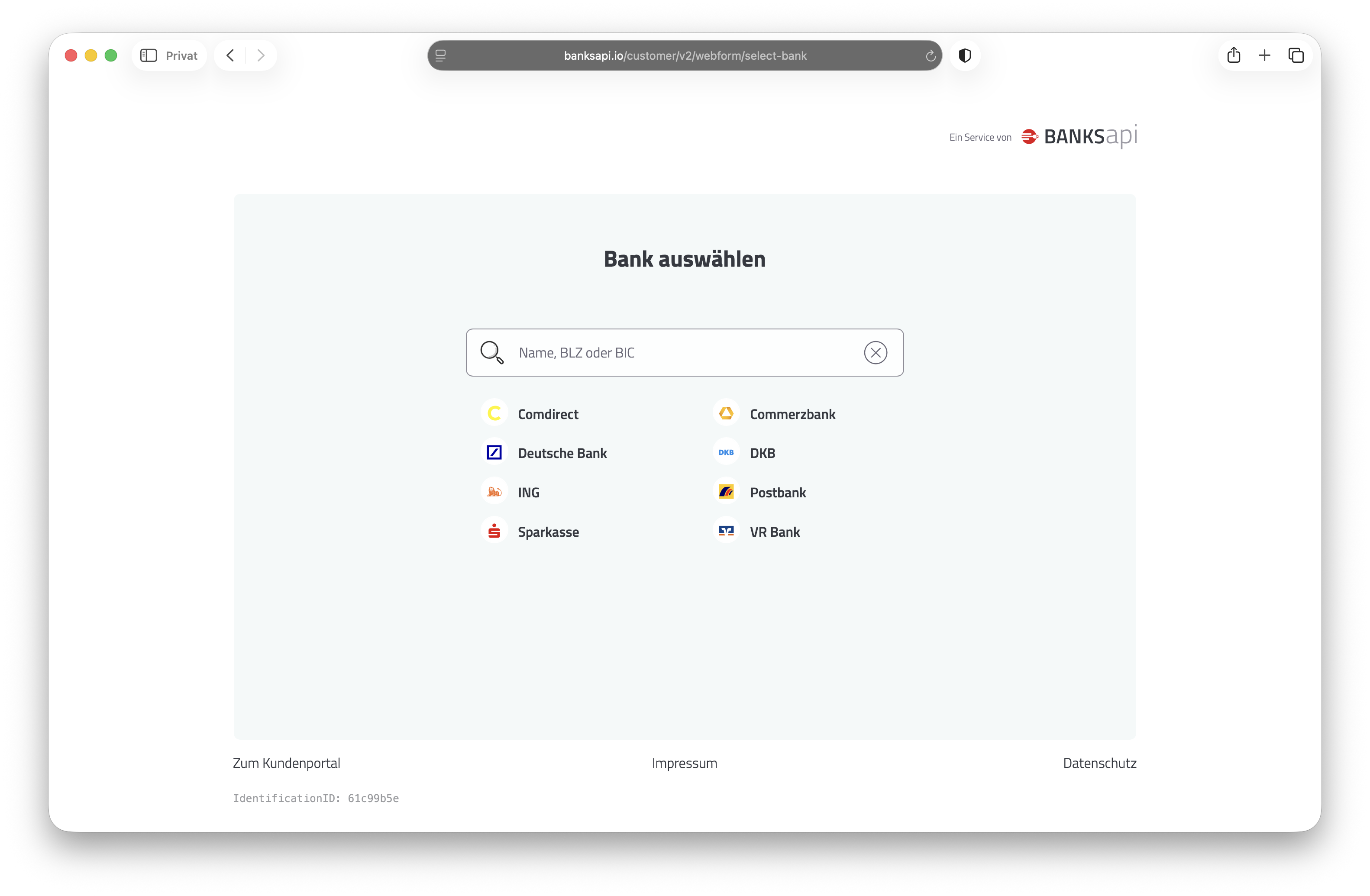
On the linking page, select your bank in the next step or search for it using the "**Name, sort code or BIC**" field, and follow the steps of your online banking.
{% endstep %}
{% step %}
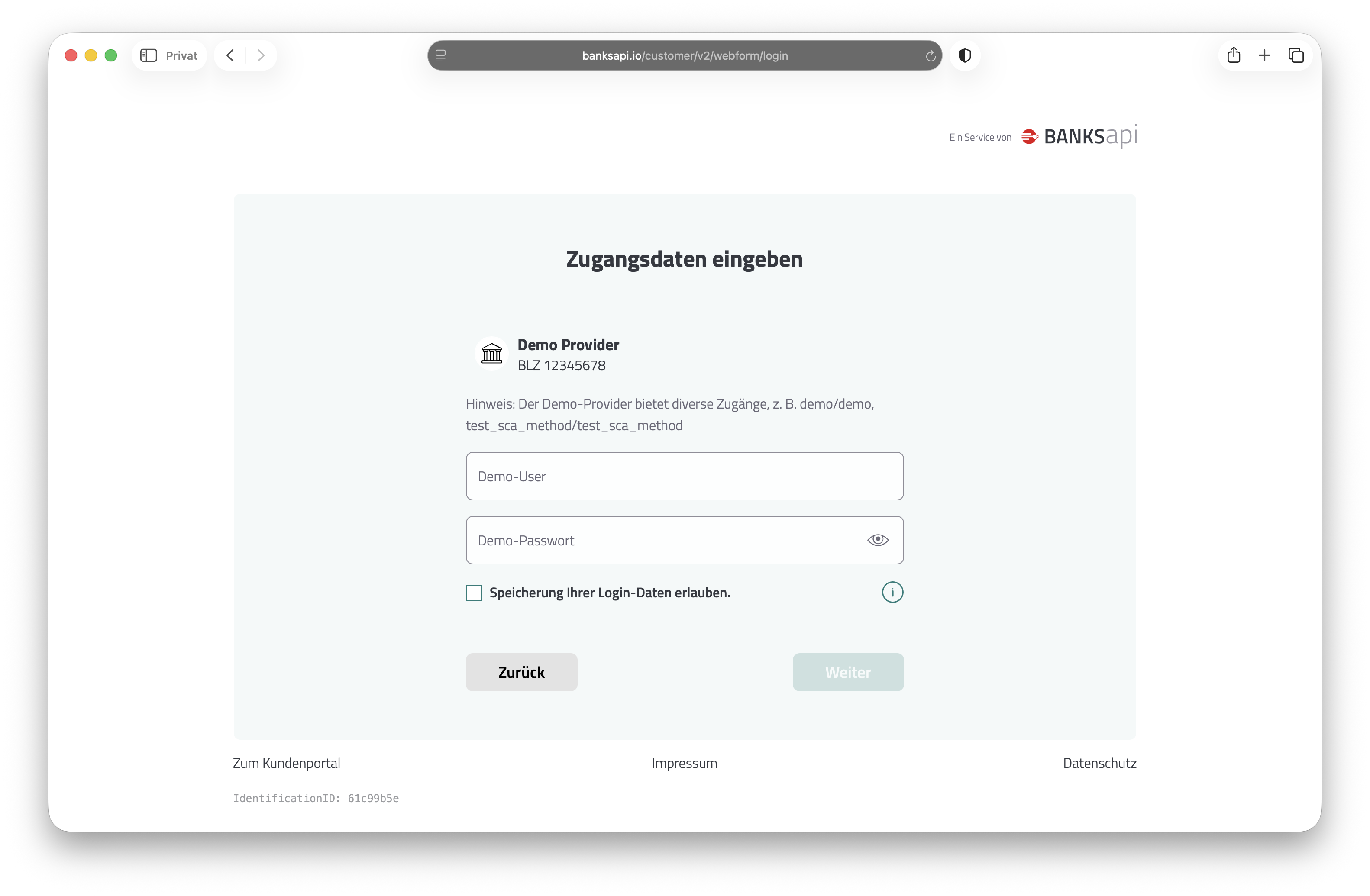
### Enter your credentials
Depending on your bank, you now have to log in and confirm access with your usual security procedure.
{% endstep %}
{% step %}
### Select an account
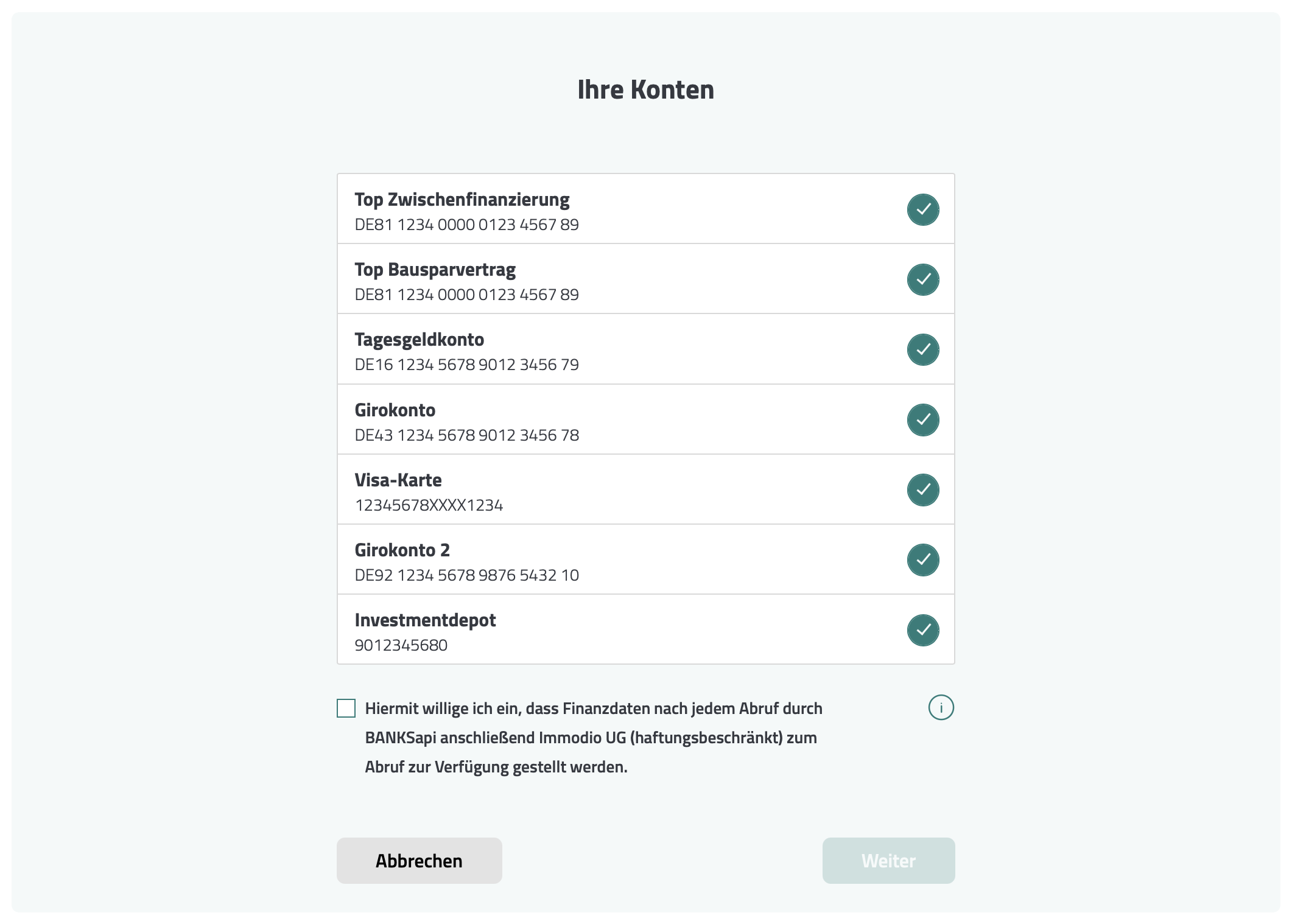
The next step shows all the accounts and financial products available at your bank. Click the relevant account to select the accounts you want to link to Immodio.
Then tick the checkbox below the list of accounts. This means you agree that the financial data retrieved may be transmitted to Immodio through BANKSapi.
Once you have given your consent, click **"Continue"** to proceed with the setup.
{% hint style="info" %}
You do not have to link all available accounts at the same time. You can also add further accounts from the same banking access later. When linking again, take care not to select accounts that are already connected.
{% endhint %}
#### Do not select accounts that are already linked
If you want to add another account from the same banking access at a later date, the linking page again shows **all the accounts at your bank**, including accounts that have already been linked to Immodio.
In this case only select the accounts that are **not yet linked to Immodio**. Check the IBAN shown in particular for this.
{% hint style="warning" %}
If an account is connected again, it is also listed twice in Immodio.
{% endhint %}
**Example:** Your banking access contains accounts A and B and you initially linked only account A to Immodio. If you later want to add account B, both account A and account B are shown again. In that case select **only account B**.
{% endstep %}
{% step %}
### Return to Immodio
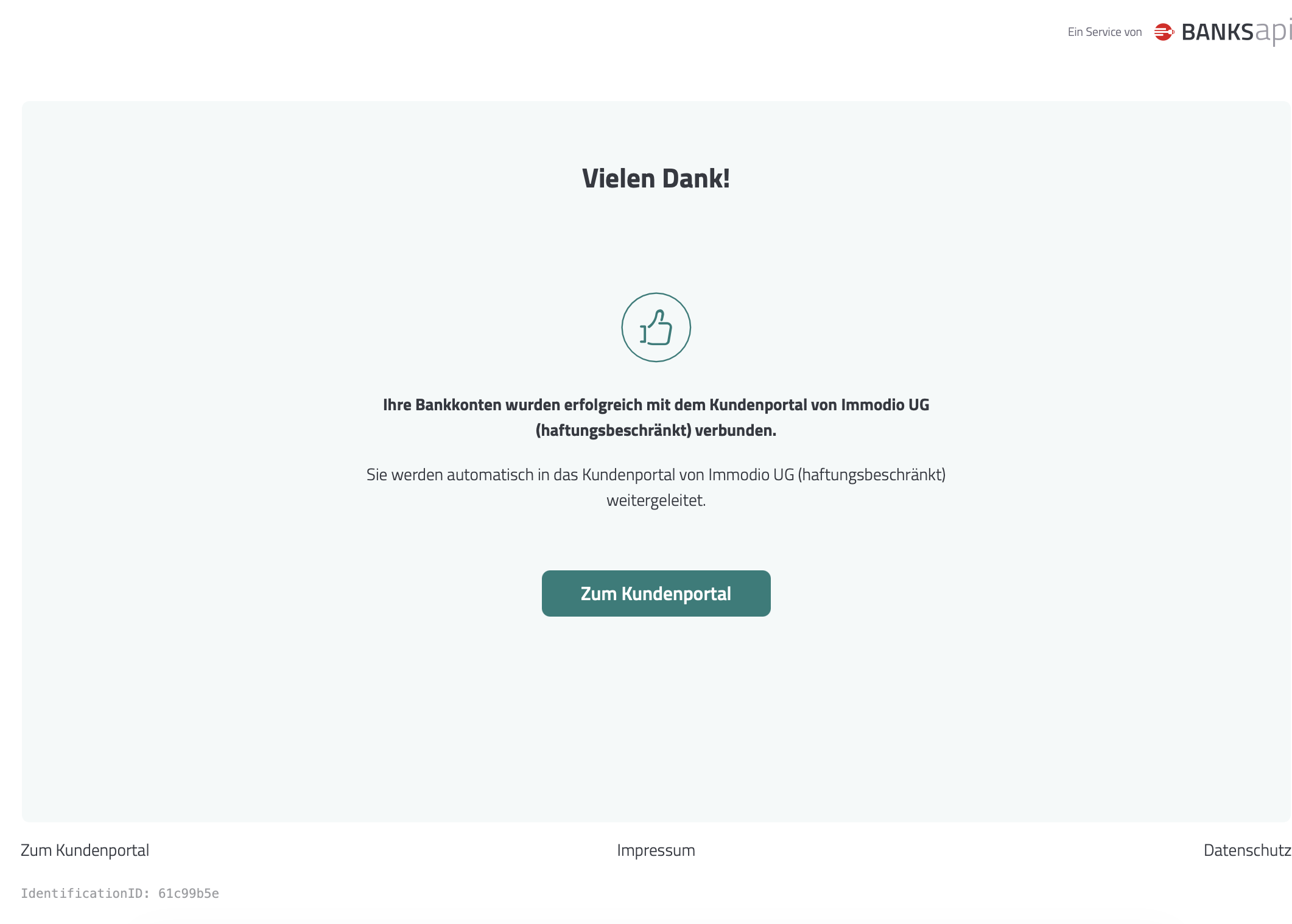
After access has been granted successfully, clicking "**Continue**" takes you back to Immodio. Immodio saves the banking access and loads the available transactions of the linked account.
#### **Note on PSD2 (**Payment Services Directive 2)
The link between your bank account and Immodio remains in place as a rule. Because of the security requirements of PSD2, however, access to your account information has to be confirmed by you again at regular intervals. **After 180 days at the latest** you have to authenticate again with your bank. Immodio can then continue to retrieve the account data through BANKSapi. In individual cases your bank may also require renewed authentication earlier for security reasons.
{% endstep %}
{% step %}
### Add the master data
Once linked, the **"Bank account master data"** area opens in Immodio.
From the list of all owners, select the owner belonging to the bank account and then click **Save**.
{% hint style="warning" %}
Once an owner has been linked, it can **no longer** be changed.
{% endhint %}
{% endstep %}
{% endstepper %}
## **Changing the master data of a bank account**
{% stepper %}
{% step %}
### Open the three-dot menu
To change the master data, click the three-dot menu of the banking product concerned.
Then click "**Edit bank account**".
{% endstep %}
{% step %}
### Adjust the master data
A dialog opens in which you can edit the master data of the bank account.
The following master data can be edited:
| Field | Description |
| ------------------------ | --------------------------------------------------------------------------------------------------------------------------------------------------------------------------------------------------------------------------------------------------------------------------------------------------------------------------------- |
| **Icon** | You can change the icon shown for the banking product and choose between the icons for "**Loan**", "**Credit card**" and "**Bank account**". |
| **Display name** | Define how the account is to be shown in Immodio, for example "**Rent receipts account**" or "**Reserves account**". |
| **DATEV account number** |
Store the six-digit DATEV account number to be used for the later accounting assignment and for the DATEV export.
If you are unsure which DATEV account number to enter here, please contact your tax advisor.
|
| {% endstep %} | |
| {% endstepper %} | |
## If the link is not completed
If the linking process is cancelled or your bank does not grant access, no new banking access is created in Immodio. In that case start the linking process again using **"Link bank account"**.
Also check whether **pop-up windows** or new tabs are allowed in your browser and whether your online banking access is active.
%20(1).png?alt=media)
%20(1).png?alt=media)

.png?alt=media)
.png?alt=media)
.png?alt=media)