> For the complete documentation index, see [llms.txt](https://help.immodio.app/llms.txt). Markdown versions of documentation pages are available by appending `.md` to page URLs; this page is available as [Markdown](https://help.immodio.app/en/anleitung/besichtigungen/zeitraume-nachtraglich-hinzufugen.md).
# Adding time slots later
You can add further periods to a viewing you have already created at any time.
Adding further periods afterwards is particularly helpful when additional prospective tenants want to view the property, when an existing viewing day is not enough, or when you want to offer further appointments later on. The viewing itself remains in place, you simply extend the available time slots that prospective tenants can apply for.
## How to do it
{% stepper %}
{% step %}
### Viewings
Go to the **"Viewings"** area.
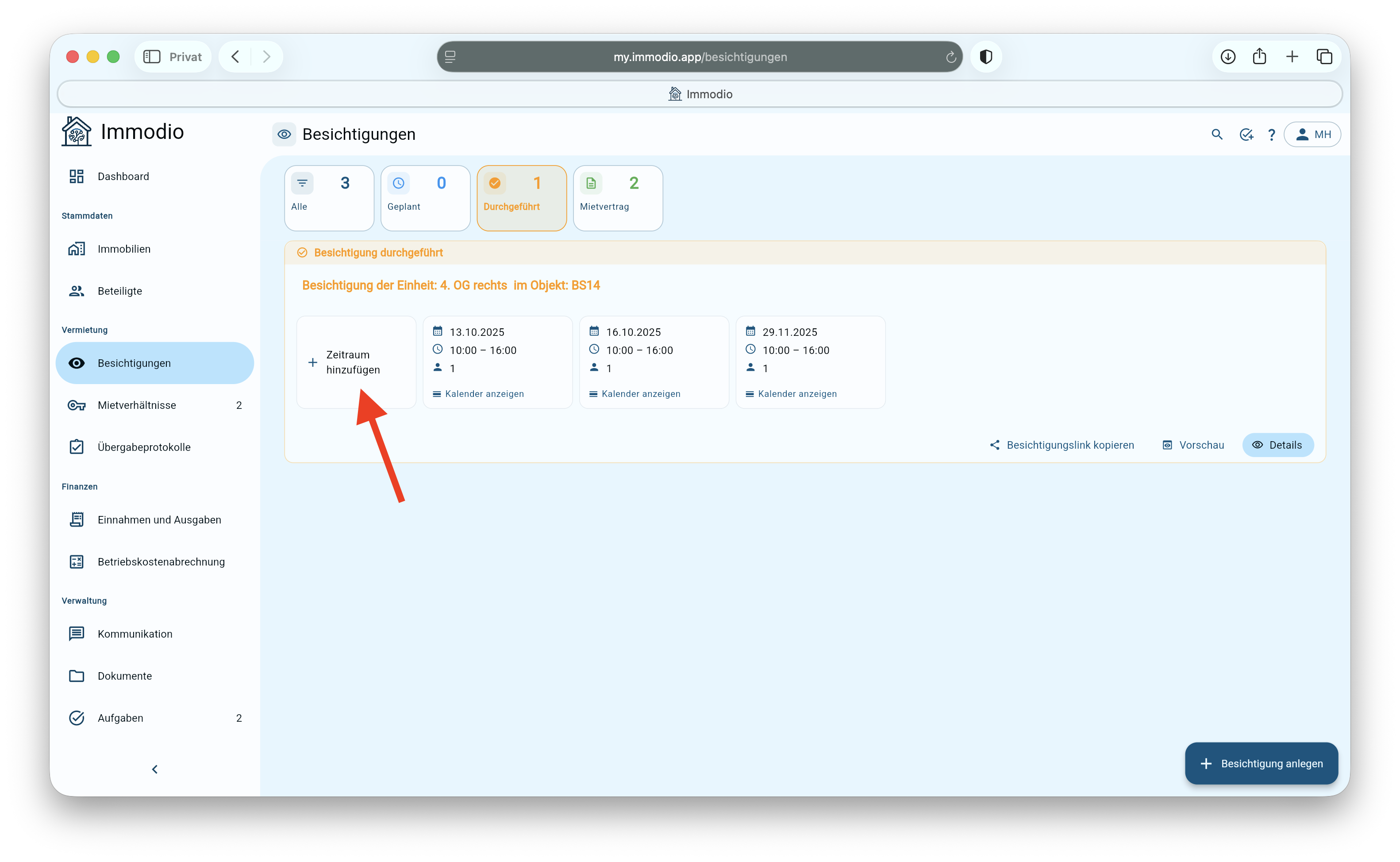
The overview shows all viewings you have already created. Each viewing is shown as its own card. There you can see, among other things, the periods already stored.
{% endstep %}
{% step %}
### Add another period
In the viewing you want, click the **"Add period"** card.
The calendar then opens first.
In the calendar, select the day on which you want to offer an additional viewing period.
Then click **"Select"**.
{% endstep %}
{% step %}
### Select the start time
Once you have selected the day, the time selection for the **start time** opens.
Select the start time you want for the additional viewing period and click **"Confirm"**
{% endstep %}
{% step %}
### Select the end time
Then select the **end time** for the viewing period.
Define how long the viewing period is to last and click **"Confirm"** again.
{% endstep %}
{% step %}
### The new period is available immediately
Once you have confirmed the end time, the new time slot is active straight away.
From this point on, prospective tenants can apply for the newly added period using the same viewing link.
{% hint style="info" %}
You do **not** have to create a new viewing link.
{% endhint %}
The period added later is also shown in the viewing overview and can be viewed there using **"Show calendar"**.
{% endstep %}
{% endstepper %}
## Deleting periods of an existing viewing afterwards
To delete individual periods of a viewing you have already created, click the **delete** icon in the viewing (see the arrow in the image "Deleting periods of a viewing" below) and then confirm the dialog with "**Yes, delete**".
{% hint style="info" %}
All prospective tenants who have already applied for a viewing on that day are automatically placed on the waiting list and can then apply again for free time slots.
{% endhint %}
.png?alt=media)
.png?alt=media)
.png?alt=media)
.png?alt=media)
.png?alt=media)