> For the complete documentation index, see [llms.txt](https://help.immodio.app/llms.txt). Markdown versions of documentation pages are available by appending `.md` to page URLs; this page is available as [Markdown](https://help.immodio.app/en/anleitung/immobilien/einheit/schlussel-einheit.md).

# Keys (unit)

This page explains how to record and manage keys for a unit digitally in Immodio.

## General information

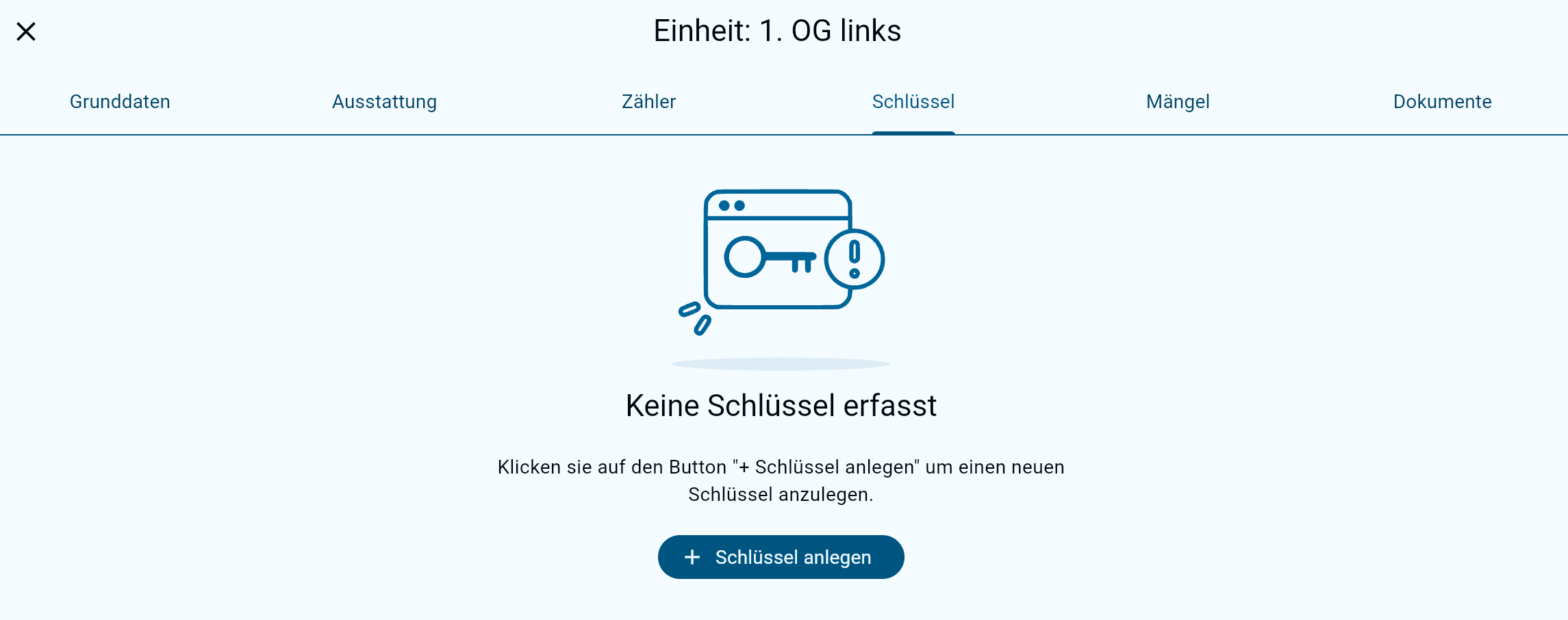
* The **"Keys"** tab lets you record and manage digitally all keys belonging to the unit.
* All keys recorded for the unit are listed clearly. The **"+ Create key"** button lets you assign new keys to a unit.
* All recorded keys are adopted automatically in the handover report.

<figure><img src="https://152064692-files.gitbook.io/~/files/v0/b/gitbook-x-prod.appspot.com/o/spaces%2FMmjaQ7ApHsdO9GrxyEiQ%2Fuploads%2Fgit-blob-936203c7b2e12b9146c748eea7005c3294206bd4%2Fimage%20(269).png?alt=media" alt=""><figcaption></figcaption></figure>

{% hint style="info" %}
Keys can only be recorded at unit level and are therefore always assigned to a specific unit. The "Keys" function lets you keep track at all times of all the keys for a unit that have been issued and are in circulation.
{% endhint %}

## Creating keys

{% stepper %}
{% step %}

### Create a key

The "Create key" button lets you add a new key.

<figure><img src="https://152064692-files.gitbook.io/~/files/v0/b/gitbook-x-prod.appspot.com/o/spaces%2FMmjaQ7ApHsdO9GrxyEiQ%2Fuploads%2Fgit-blob-b71bf55e23857fb885a6e050a205fed66d1a586c%2F9107.png?alt=media" alt=""><figcaption></figcaption></figure>
{% endstep %}

{% step %}

### Enter the key data

In the following window you can record the data for the key type concerned.

<figure><img src="https://152064692-files.gitbook.io/~/files/v0/b/gitbook-x-prod.appspot.com/o/spaces%2FMmjaQ7ApHsdO9GrxyEiQ%2Fuploads%2Fgit-blob-07f75274da6488be3daedb4f1a960ff9a139b795%2Fimage%20(174).png?alt=media" alt=""><figcaption></figcaption></figure>

<table><thead><tr><th width="170.08984375">Field</th><th>Explanation</th></tr></thead><tbody><tr><td>Key number (optional)</td><td>The <strong>number of the lock cylinder</strong> is usually used as the key number. It is normally found directly on the key and serves for <strong>unambiguous identification and assignment</strong> within key management.</td></tr><tr><td>Key name</td><td>The key name serves as the <strong>general description</strong> of the key, for example <em>front door</em>, <em>apartment door</em>, <em>letterbox</em> or <em>cellar</em>. It helps to distinguish different keys within a unit clearly and manage them easily.</td></tr><tr><td>Quantity</td><td>Here you state how many copies of the key exist. This information is important for documentation at the apartment handover and automates the later <strong>recording in the handover report</strong>.</td></tr><tr><td>Description (optional)</td><td>An optional field for internal notes about the key concerned. Here you can record, for example, <strong>which areas or doors the key opens</strong> or <strong>particular characteristics</strong> relating to its use or assignment.</td></tr></tbody></table>
{% endstep %}

{% step %}

### Save the key

Clicking "Save" creates the key in Immodio. If several keys are to be created at once, the next key can be recorded straight away using "Create key".
{% endstep %}
{% endstepper %}