> For the complete documentation index, see [llms.txt](https://help.immodio.app/llms.txt). Markdown versions of documentation pages are available by appending `.md` to page URLs; this page is available as [Markdown](https://help.immodio.app/en/anleitung/mietverhaltnisse/mietverhaltnis-nach-erstellung-bearbeiten.md).
# Editing a tenancy after creation
This page explains how you can edit a tenancy you have already created if you want to make changes to the draft rental agreement.
{% hint style="warning" %}
A tenancy can only be edited while it has the status **"Tenant signature"** or **"Landlord signature"**. Once you have signed as the landlord and the rental agreement has been legally concluded, **no** further changes are possible.
{% endhint %}
Once you have created a tenancy and thereby generated a draft rental agreement, you can edit the details previously recorded in the rental agreement assistant again if needed:
{% stepper %}
{% step %}
### Open the tenancy
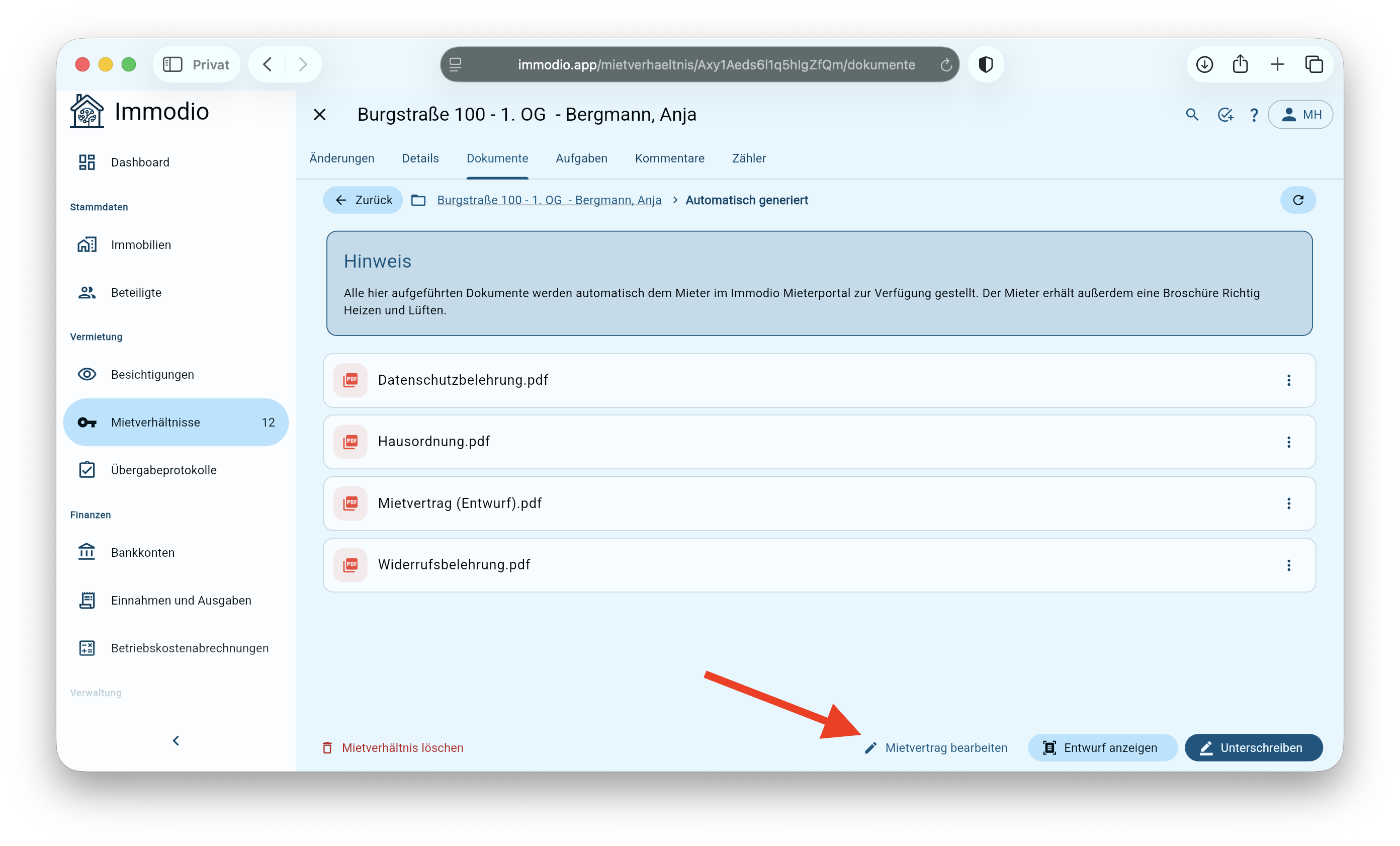
As the first step, open the tenancy you want to edit. Within the tenancy you will find the **"Edit rental agreement"** button at the bottom right.
{% endstep %}
{% step %}
### Edit the rental agreement
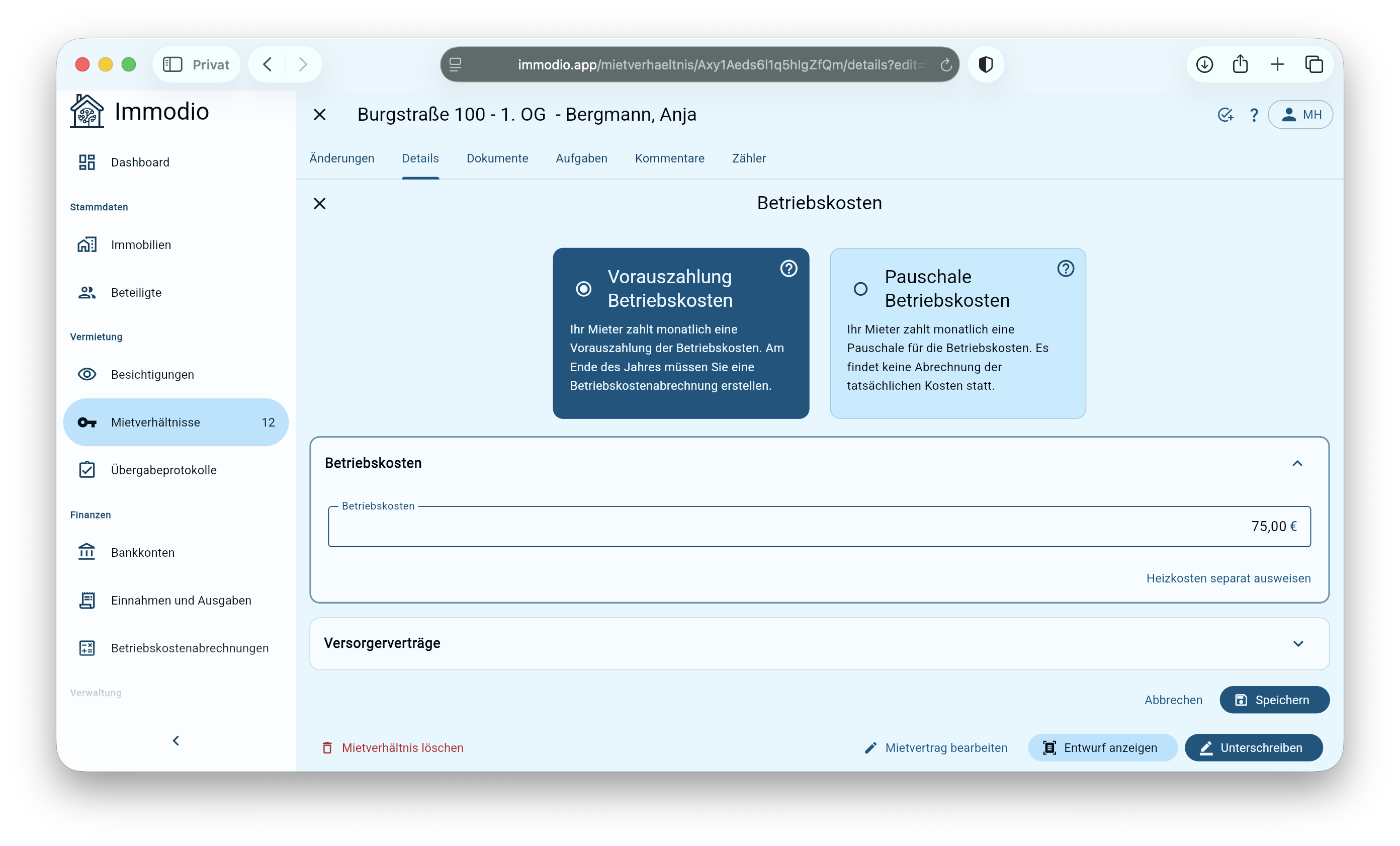
In each step of the rental agreement assistant you will find a **pencil icon** on the right. This icon lets you edit the details of that step again.
When you click the pencil icon, a confirmation dialog appears first.
It asks whether you really want to edit the tenancy. Confirm the dialog to start editing and make the changes you want.
{% endstep %}
{% step %}
### Save the changes
You can now make the necessary changes in the step you want. Once you have entered and saved all the adjustments, the draft rental agreement is regenerated automatically.
If you click **"Cancel"** instead, the editing process ends. In that case no changes are applied and the existing draft rental agreement remains unchanged.
{% endstep %}
{% step %}
### Sign the rental agreement again if necessary
If the tenant has already signed the original draft, they have to review the changed draft rental agreement and then sign it digitally again.
If you have already invited your tenant to the [Immodio tenant portal](/en/wissen/mieterportal.md), the new draft rental agreement is transferred to the tenant's tenant portal automatically.
{% hint style="info" %}
If the tenant has verified their email address, Immodio also informs them by email that the draft rental agreement has been edited and a new draft has been created.
{% endhint %}
{% endstep %}
{% endstepper %}

.png?alt=media)
.png?alt=media)